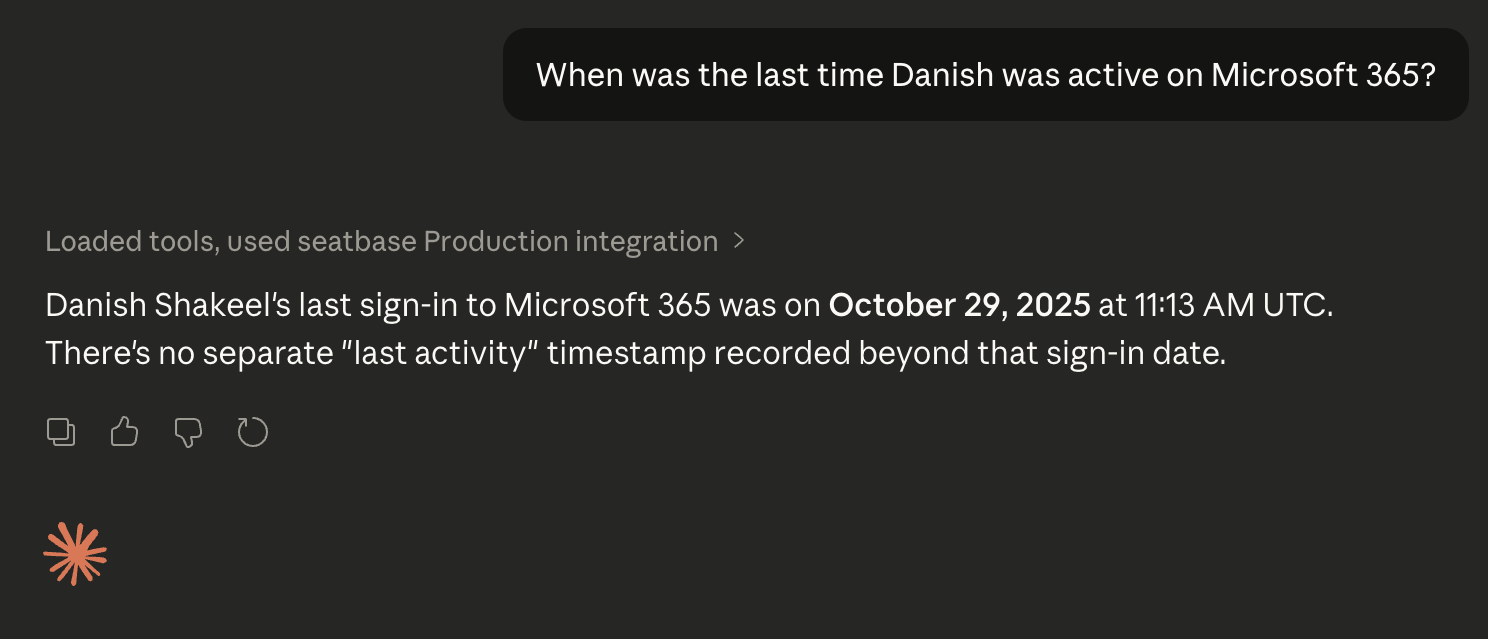
Configuring MCP Client
This guide explains how you can set up MCP credentials and configure MCP Clients to get insights into your organization using AI.
Written By Danish Shakeel
Last updated 7 months ago
Setting up MCP Credentials
Go to seatbase Portal > Organization (https://app.seatbase.io/admin/organization)
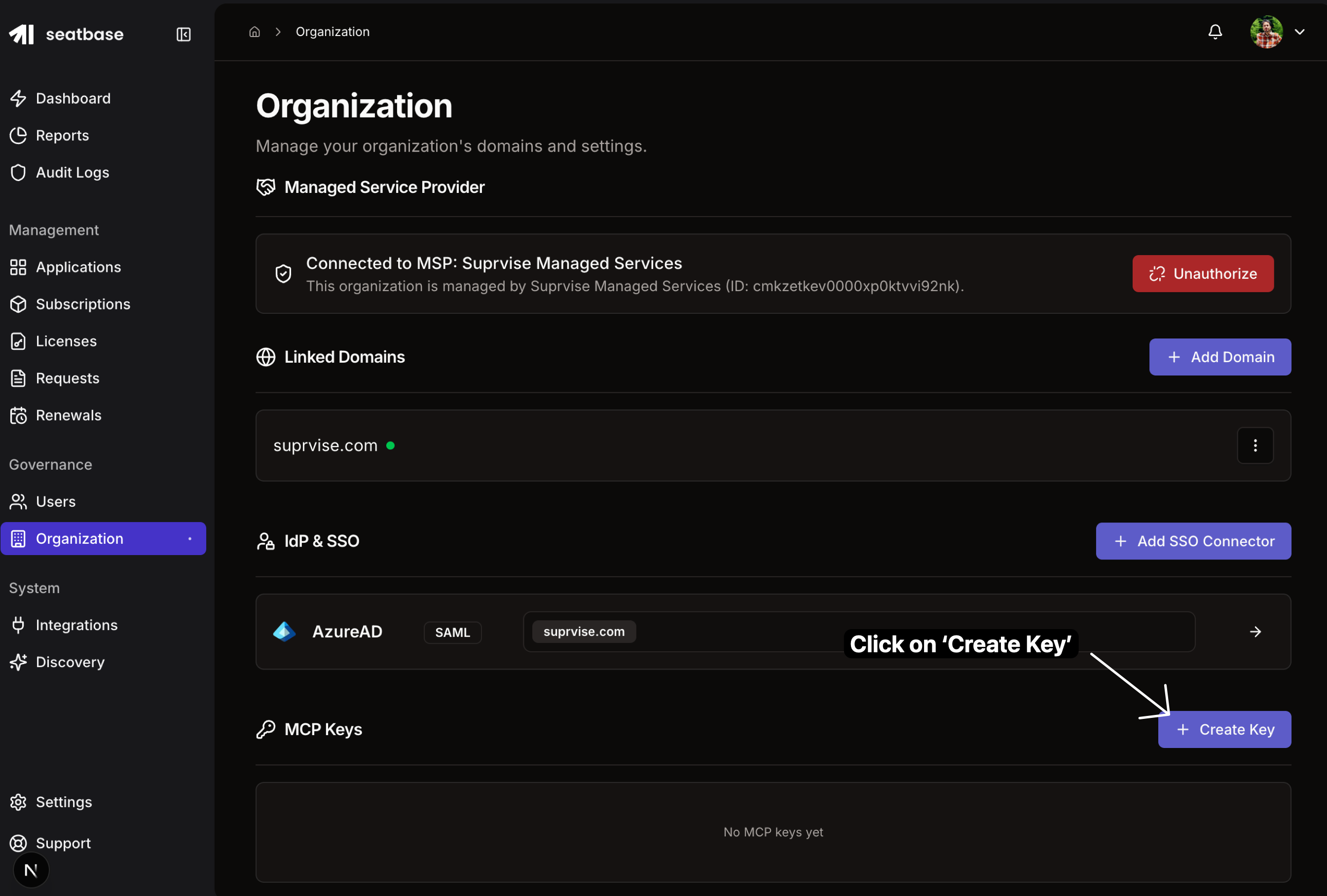
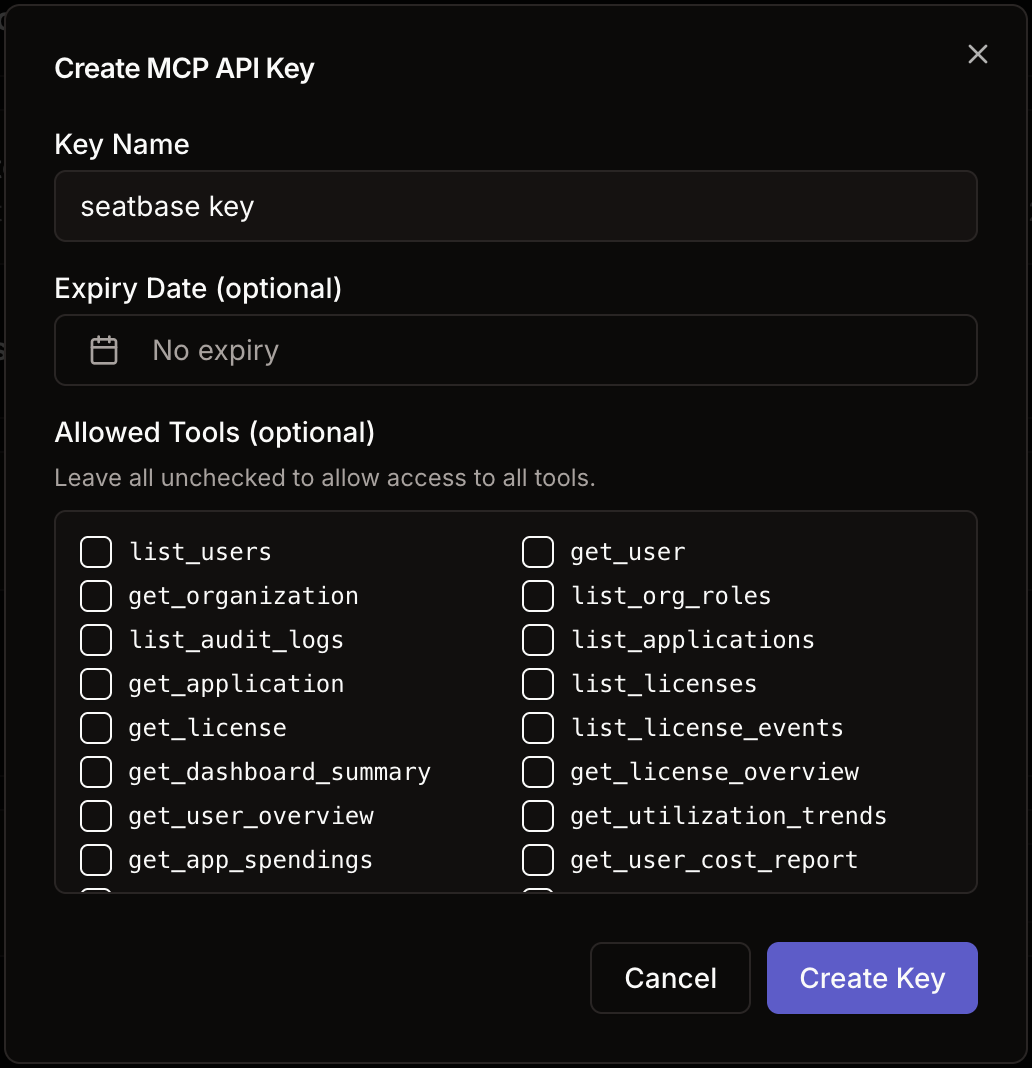
Click on ‘Create Key’, enter a name, expiry, and allowed tools (leave blank to allow MCP to access all the tools)
Note: all the tools are read-only, they don’t perform any write/delete operation on your data.
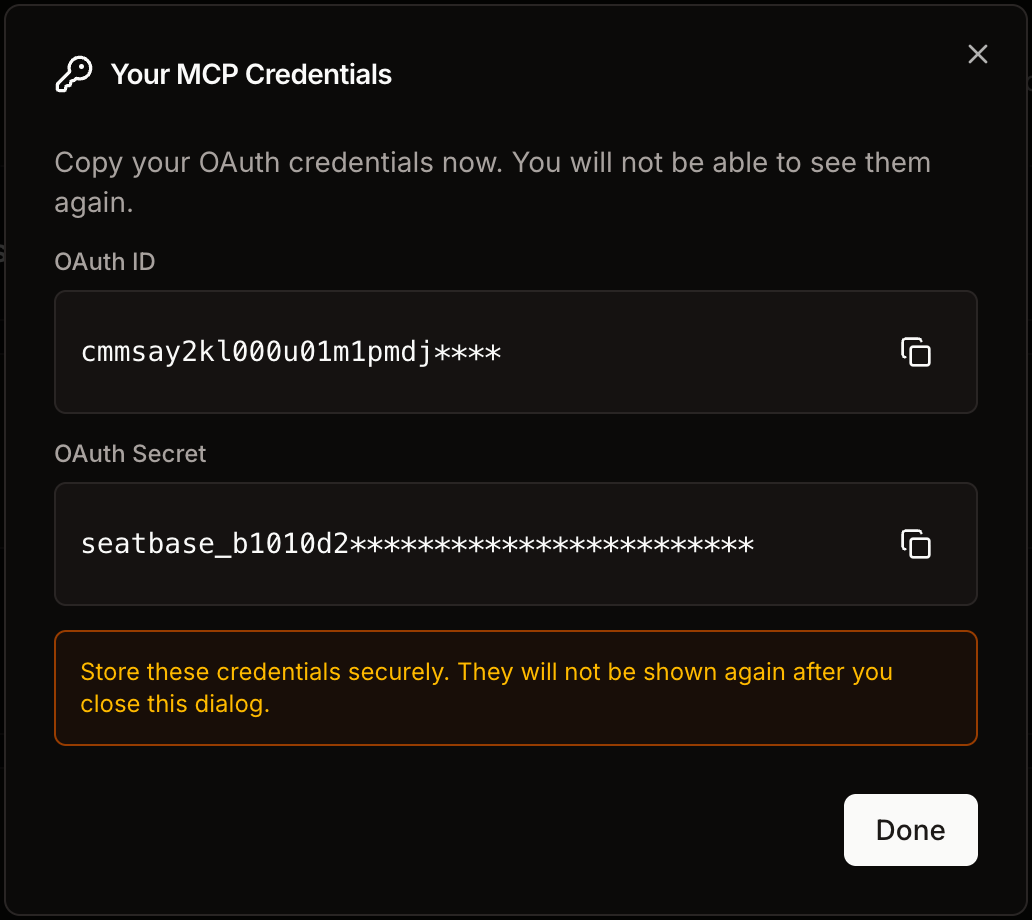
Once generated, copy your OAuth ID and OAuth Secret
Configuring MCP Clients
Go to your MCP Client; for this example, we will use Claude
Navigate to Customize > Connectors (https://claude.ai/customize/connectors)
Enter a name for your connector
Enter https://api.seatbase.io/lens/mcp as the MCP Endpoint
In Authentication settings, enter the credentials copied from our platform
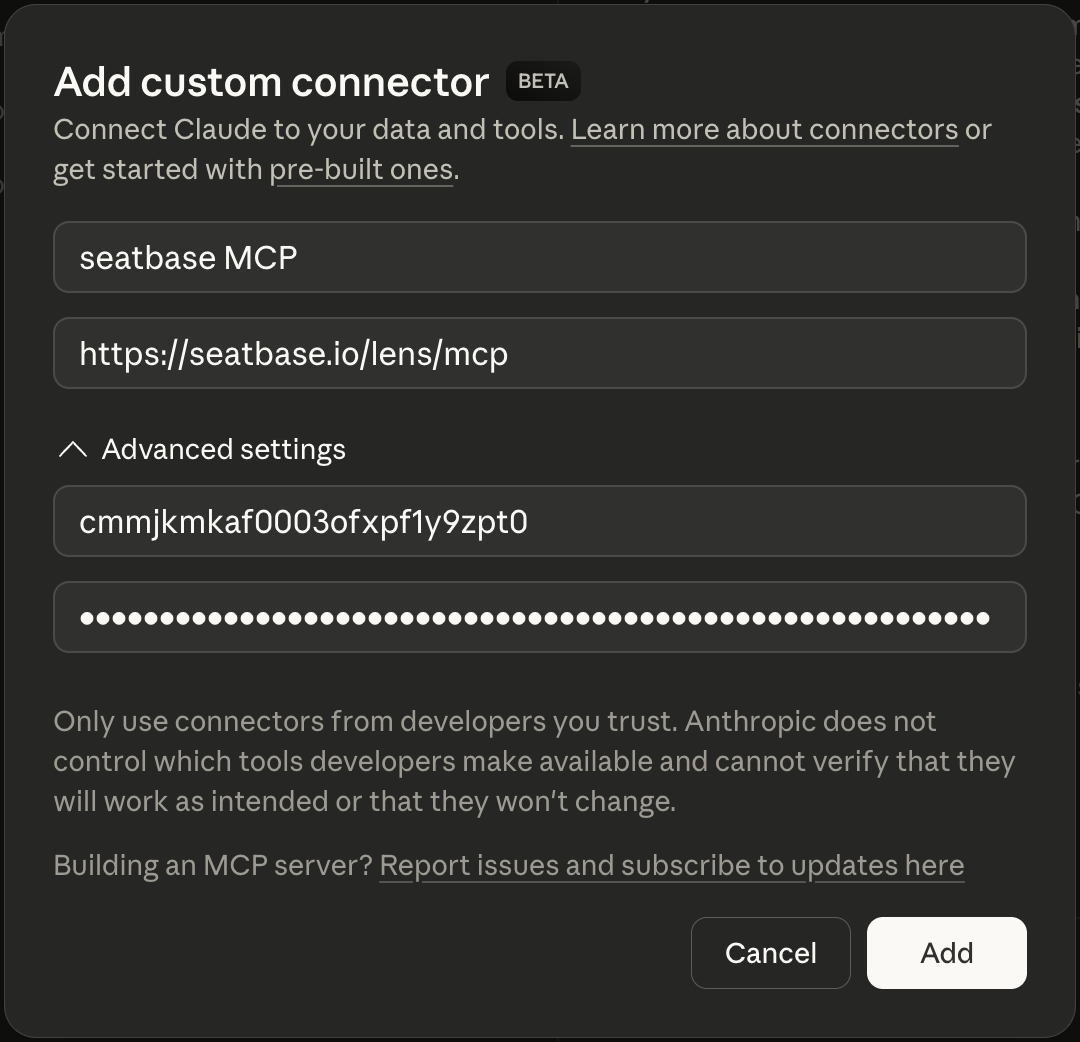
Get real-time information from our platform directly in your MCP Client